
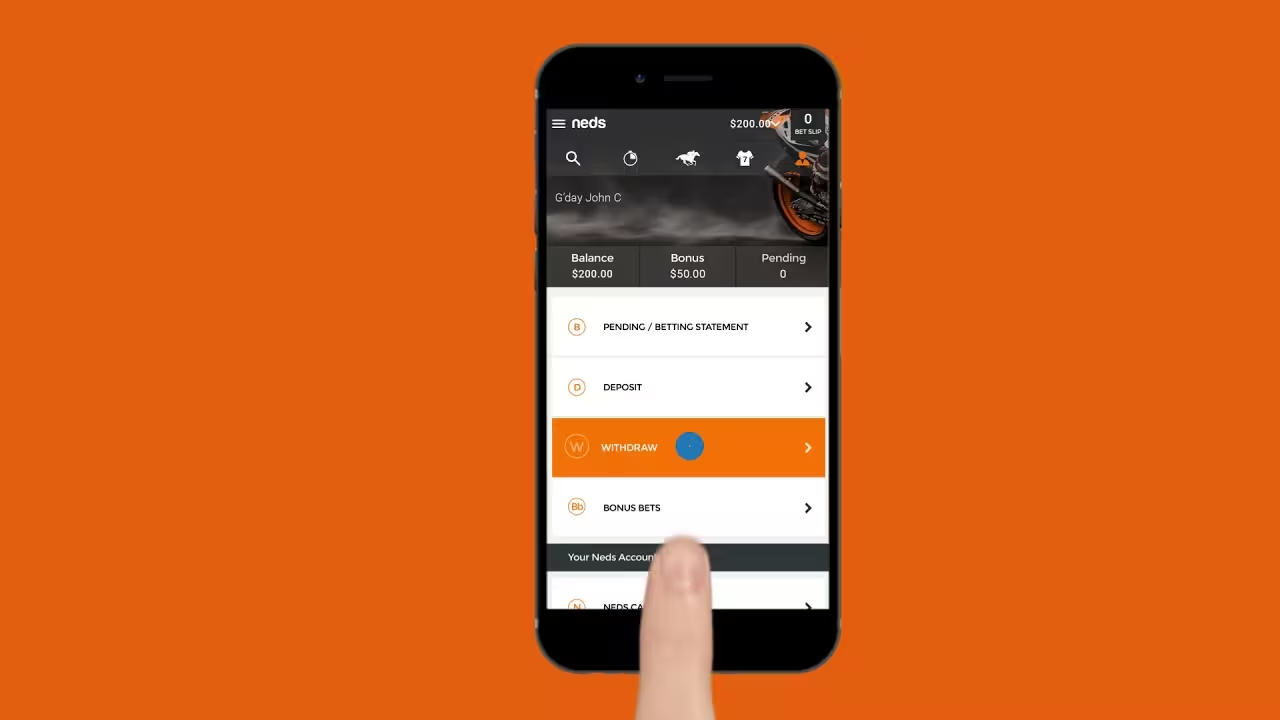
Few things are more frustrating than trying to fund your Neds account and seeing a PayID deposit fail.
You've found a betting opportunity, the odds are where you want them, and you're ready to place your wager. Then suddenly your deposit won't go through, leaving you stuck on the sidelines.
The good news is that most PayID deposit errors are caused by simple issues that can be fixed within a few minutes. In many cases, the problem isn't with your money or your account at all.
This guide walks you through the most common PayID deposit problems on the Neds mobile app and explains exactly how to fix them.
Why Is My PayID Deposit Failing on Neds?
PayID deposits are usually fast and reliable, but several factors can cause a transaction to fail.
Common causes include:
- Incorrect PayID details
- Bank security checks
- Account verification issues
- Insufficient funds
- App glitches
- Banking outages
- Daily transfer limits
Finding the cause is the first step toward fixing the problem.
Start With the Simple Checks
Before contacting support, it's worth running through a few quick checks.
Many deposit issues can be resolved without any additional help.
Check Your Internet Connection
A weak or unstable connection can interrupt payment requests.
Try the following:
- Switch between Wi-Fi and mobile data
- Restart your router
- Toggle Airplane Mode on and off
- Test other websites or apps
If your connection isn't stable, the transaction may not process correctly.
Restart the Neds App
Temporary app glitches happen occasionally.
Completely close the Neds app rather than simply minimizing it.
Wait a few seconds before reopening the app and trying the deposit again.
This simple step often fixes minor technical issues.
Restart Your Phone
If restarting the app doesn't work, restart your device.
A full reboot clears temporary software problems that may be affecting the app or banking services.
After restarting, log back into Neds and try again.
Check the PayID Details Carefully
One of the most common causes of failed deposits is incorrect payment information.
Always copy the PayID details directly from the Neds deposit screen.
Avoid manually typing details whenever possible.
Before sending money, confirm:
- PayID is correct
- Deposit amount is correct
- Reference number is correct
- Recipient information matches Neds
Even a small mistake can prevent the payment from reaching your account.
Verify the Recipient Name
When making a PayID transfer, your bank will normally display the recipient's name before you confirm the payment.
This acts as a safety check.
If the displayed recipient name doesn't match the information provided by Neds, stop the transaction and double-check the details.
Never send funds if the recipient appears incorrect.
Check Your Bank Account Balance
This may seem obvious, but it's worth confirming.
Make sure you have enough money available to cover:
- The deposit amount
- Any pending transactions
- Any bank holds or reserved funds
Insufficient funds are a surprisingly common cause of failed deposits.
Review Your Daily Transfer Limits
Many Australian banks apply limits to PayID transfers.
If you've already made multiple payments that day, you may have reached your limit.
Check:
- Daily transfer limits
- PayID limits
- Security restrictions
You can usually find this information inside your banking app or online banking portal.
Check for Bank Security Holds
Banks occasionally flag transactions that appear unusual.
This often happens when:
- You're sending a large amount
- It's your first transfer to Neds
- Your banking behaviour changes suddenly
In these cases, the bank may temporarily block the payment until you confirm it.
Contact your bank if you believe a security hold has been applied.
Is Your Neds Account Fully Verified?
Australian bookmakers must verify customer identities before allowing certain account activities.
If your account isn't fully verified, deposits or withdrawals may be restricted.
Log into your account and check your verification status.
You may need to provide:
- Driver's licence
- Passport
- Medicare card
- Proof of address
Completing verification can resolve many account-related deposit issues.
Update the Neds Mobile App
Using an outdated version of the app can create unexpected problems.
Check for updates through:
- Google Play Store
- Apple App Store
App updates often include:
- Bug fixes
- Security improvements
- Payment processing enhancements
Installing the latest version is always recommended.
Clear the Neds App Cache
Stored app data can occasionally become corrupted.
Clearing the cache removes temporary files that may be causing issues.
Android Users
Follow these steps:
- Open Settings.
- Select Apps.
- Choose Neds.
- Open Storage.
- Tap Clear Cache.
If the problem continues, you can also try Clear Data.
iPhone Users
The easiest approach is usually:
- Delete the Neds app.
- Restart your device.
- Reinstall the app.
This effectively refreshes the application.
Could PayID or Osko Be Down?
Although rare, system-wide issues can happen.
PayID relies on Australia's New Payments Platform (NPP), which occasionally experiences maintenance or outages.
Signs of a wider issue include:
- Multiple payment failures
- Banking service alerts
- Delays across different platforms
If you suspect an outage, check:
- Your bank's website
- Neds support channels
- Service status announcements
Sometimes waiting a short period is the only solution.
What If the Money Left Your Bank Account?
If your bank shows the payment as completed but the money hasn't appeared in Neds, don't panic.
First:
- Check your Neds transaction history
- Refresh your account balance
- Wait 15–30 minutes
Most PayID deposits arrive quickly, but occasional delays can occur.
If the funds still don't appear, contact Neds support immediately.
When Should You Contact Neds Support?
It's time to contact support if:
- The deposit keeps failing
- Funds left your bank but didn't reach Neds
- You receive unclear error messages
- Verification problems won't resolve
Before contacting support, have the following ready:
- Username
- Deposit amount
- Transaction date
- Bank reference number
- Screenshots of any errors
Providing detailed information can help resolve the issue faster.
Responsible Gambling Reminder
Fast deposit methods like PayID are convenient, but it's important to use them responsibly.
Before making deposits, consider setting:
- Deposit limits
- Loss limits
- Session reminders
- Spending budgets
These tools can help you stay in control of your gambling activity.
Never deposit more money simply because a transaction failed the first time.
Final Thoughts
Most PayID deposit errors on the Neds mobile app can be resolved by checking your payment details, reviewing your bank account settings, updating the app, and confirming your account verification status.
Start with the simple fixes first before moving on to more advanced troubleshooting.
If the problem continues after trying all the steps in this guide, Neds support and your bank should be able to identify the issue and help get your deposit processed successfully.
With the right checks, you'll usually be back to betting within minutes.
0 Comments
Comments are reviewed before they appear.No comments yet. Be the first to add one.