
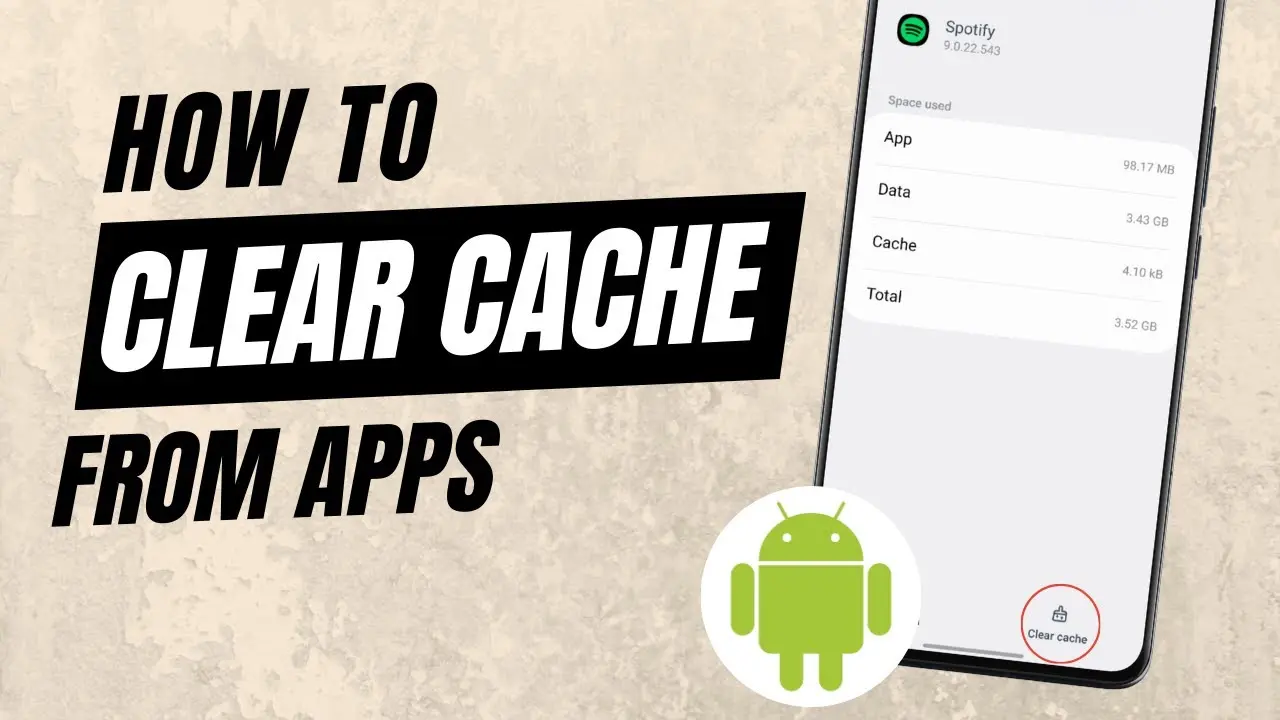
To clear the cache on your Odibets app, you generally need to go into your phone's settings, find the Apps section, select the Odibets application, and then choose the 'Storage' option to find the 'Clear cache' button. This process helps remove temporary files that can sometimes cause the app to slow down or misbehave.
Understanding how to manage your app's cache is a useful skill for any smartphone user, especially for those who frequently use betting apps like Odibets in Kenya. This guide will walk you through the simple steps to clear your Odibets app cache, explain why it matters, and offer other helpful troubleshooting tips to ensure your betting experience remains fast and reliable.
Why Clearing Your Odibets App Cache is Important
Clearing the cache on your Odibets app is important because it helps keep the application running smoothly and efficiently. Over time, apps collect temporary data, known as cache, which can sometimes become corrupted or simply too large, leading to performance issues.
When your Odibets app starts acting slow, freezing, or displaying old information, a cluttered cache is often the culprit. Regularly clearing this temporary data can resolve these common problems, making your betting experience much more enjoyable and reliable.
What is App Cache, Anyway?
App cache is essentially a collection of temporary data that your Odibets app stores on your phone to load information faster. For example, it might save images, past betting slips, or user interface elements so they don't have to be downloaded every single time you open the app.
While this is designed to speed things up, if the cached data becomes outdated or too extensive, it can actually have the opposite effect. It can cause the app to struggle, leading to delays or even crashes when you are trying to place a bet or check your results.
Step-by-Step Guide to Clearing Odibets App Cache on Android
Clearing the cache on your Odibets app is a straightforward process on most Android phones. Follow these steps carefully to ensure you remove only the temporary files without deleting important app data.
- Open your phone's Settings: Look for the 'Settings' icon on your home screen or in your app drawer. It often looks like a gear or a wrench.
- Find 'Apps' or 'Applications': Scroll down within the Settings menu until you see an option like 'Apps', 'Applications', or 'App Management'. Tap on it to open the list of all installed applications.
- Locate and select Odibets: In the list of apps, scroll until you find 'Odibets' and tap on it. This will take you to the App Info screen for the Odibets application.
- Tap 'Storage' or 'Storage & cache': On the App Info screen, you will see various options. Look for 'Storage' or 'Storage & cache' and tap it.
- Select 'Clear cache': You will now see options for 'Clear data' and 'Clear cache'. Make sure you tap 'Clear cache' only. Do not tap 'Clear data' unless you intend to completely reset the app and delete all user data, which would require you to log in again and might remove saved preferences.
- Confirm (if prompted): Some phones might ask you to confirm your action. Tap 'OK' or 'Confirm' to proceed. The cache size should now show as 0 B.
Once these steps are complete, you have successfully cleared the cache for your Odibets app. You can now go back to your home screen and open the Odibets app to see if the performance has improved.
What to Expect After Clearing Your Cache
After you clear the cache on your Odibets app, you might notice a few minor changes initially. These are normal and usually temporary as the app rebuilds its necessary temporary files.
The first time you open the Odibets app after clearing the cache, it might take a little longer to load than usual. This is because it needs to re-download some of the temporary data it previously stored. You may also need to log back into your account, as some cached login tokens might have been removed. However, once these initial steps are done, you should experience a smoother and more responsive app.
When Should You Clear Your Odibets App Cache?
Knowing when to clear your Odibets app cache can save you a lot of frustration and keep your betting experience running smoothly. It's a good first step in troubleshooting many common app problems.
You should consider clearing your cache whenever the app feels sluggish, crashes unexpectedly, or displays information that seems outdated. It's also a good practice to do it periodically as part of routine app maintenance, even if you're not experiencing immediate issues.
Here is a table summarizing common Odibets app issues and how clearing the cache can help address them:
| Issue | Description | How Clearing Cache Helps |
|---|---|---|
| Slow Performance | The app loads slowly, pages take time to refresh, or actions are delayed. | Removes old, unnecessary data that clogs up the app, allowing it to retrieve fresh information faster. |
| App Crashing/Freezing | The app unexpectedly closes or becomes unresponsive during use. | Eliminates corrupted temporary files that can cause instability and lead to crashes. |
| Outdated Information | Seeing old odds, results, or bet slips even when you know they should be updated. | Forces the app to download the latest information from the Odibets servers instead of showing old cached data. |
| Login Problems | Difficulty logging in or staying logged in, even with correct credentials. | Can clear corrupted session tokens or login data that might be interfering with authentication. |
| Bet Slip Errors | Issues with adding selections to your bet slip or confirming bets. | Resolves temporary glitches in the app's local storage that might affect bet processing. |
Other Troubleshooting Tips for Your Odibets App
While clearing the cache is a powerful first step, sometimes other issues might be at play. If clearing your Odibets app cache doesn't fully resolve your problems, there are a few other things you can try.
These additional steps can help you pinpoint and fix more persistent issues, ensuring you can always enjoy a smooth betting experience.
Update the App
Always make sure your Odibets app is updated to the latest version. Developers frequently release updates that fix bugs, improve performance, and introduce new features. An outdated app can sometimes lead to compatibility issues or unexpected behavior.
Restart Your Phone
A simple phone restart can often work wonders. It clears your phone's temporary memory and can resolve minor software glitches that might be affecting the Odibets app or other applications on your device.
Reinstall the App
If all else fails, consider uninstalling and then reinstalling the Odibets app. This ensures you have a completely fresh installation, free from any deeply embedded corrupted files that even clearing the cache might not remove. Remember to back up any important information if the app allows it, though most betting apps store your account data on their servers.
Check Your Internet Connection
A poor or unstable internet connection can often mimic app performance issues. Make sure you have a strong Wi-Fi signal or sufficient mobile data. Try opening other apps or websites to confirm your internet is working correctly.
Contact Odibets Customer Support
If you've tried all the above steps and are still experiencing issues, it's time to reach out to Odibets customer support. They can offer specific guidance or check if there are any known issues with their service. For general advice on contacting support for betting sites, you can learn more about how to contact betting site support about deposit issues, which often applies to other technical problems as well.
Conclusion
Clearing the cache on your Odibets app is a simple yet effective way to maintain its performance and resolve common issues like slow loading or crashes. By following the steps outlined in this guide, you can ensure your betting experience remains smooth and enjoyable. Remember to use this troubleshooting tip regularly, alongside other basic checks, to keep your app running at its best.
0 Comments
Comments are reviewed before they appear.No comments yet. Be the first to add one.